Showing posts with label Download. Show all posts

Thursday, August 8, 2024

How to Increase Download Speed in Chrome for Android (10 Methods)

5:10 AM 0

 Google Chrome for Android has bugs, glitches, and other issues that can ruin a user’s web browsing experience. Recently, many Android users have reported Google Chrome download problems.

According to users, Google Chrome for Android takes forever to complete the ongoing downloads. If you’re dealing with the same issue, follow up with the tips we shared to speed up Chrome downloads.

1. Restart the Chrome Browser

If you are experiencing slow download speeds in Google Chrome for Android, restart the web browser.

This is one of the first things you should do if you’re experiencing slow download speed Chrome for Android for the first time.

All you need to do is close the Chrome web browser and reopen it. After the restart, download your files again.

2. Close all Unused Tabs

Chrome browser actually keeps all unused tabs in the background. Although the inactive tabs won’t use your RAM resources, they adversely affect the browser’s overall performance.

There are likely too many browser tabs running in the background, which affects the download speed. You can close those unwanted tabs to speed up Chrome downloads on Android.

1. Open the Chrome browser and tap the Square icon beside the (+) button.

2. Now, you can see all tabs running in the background.

3. Simply tap the (x) button on the tab you want to close.
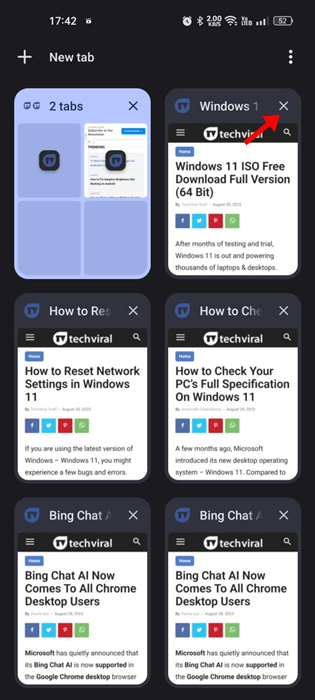
tap the (x) button

4. To close all tabs, tap on the three dots at the top right corner.
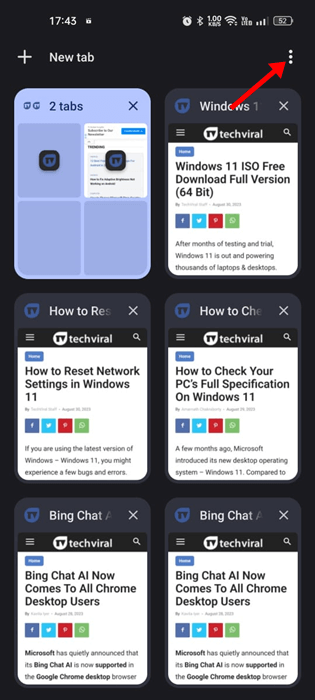
three dots

5. On the menu that appears, select Close all tabs.
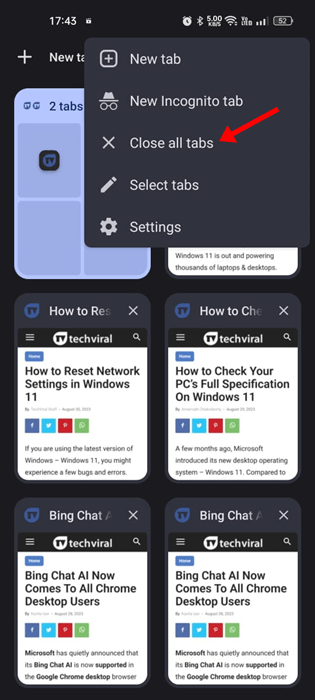
Close all tabs

3. Disable Battery Optimization for Chrome

The latest version of Android has a feature that automatically optimizes battery consumption for the apps. You need to turn off the battery optimization for the Google Chrome browser to fix the slow download speed Chrome for Android issue. Here’s what you need to do.

1. Open the Settings app on your Android device.

2. When the Settings app opens, tap on the Battery.

Battery

3. On the Battery, tap on the More Settings.
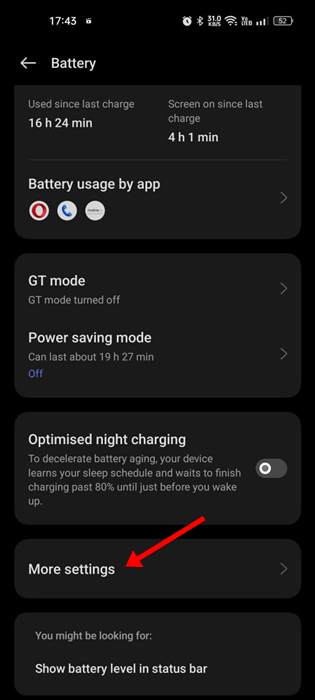
More Settings

4. Now tap on the Optimize battery use.
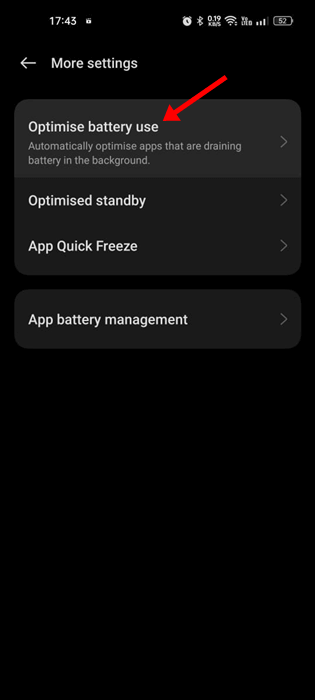
Optimize battery use

5. Find Google Chrome & tap on it.

6. On the menu that appears, select Don’t Optimize.

After making the changes, make sure to restart your Android smartphone. This should fix the slow download speed on Chrome problem on Android.

4. Enable Parallel Downloading on Chrome

Parallel downloading is a Chrome specific feature that accelerates the download speed. The feature is available for all sorts of operating systems, but it needs to be enabled manually. Here’s how you can enable parallel downloading on Chrome.

1. Open the Google Chrome web browser on your Android device.

2. On the address bar, type chrome://flags and press Enter.
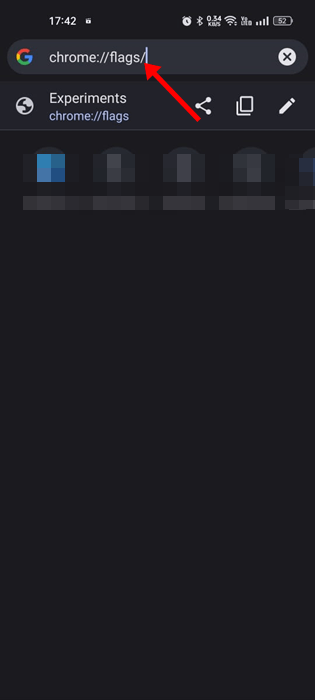
chrome://flags

3. Type in Parallel downloading in the search field.
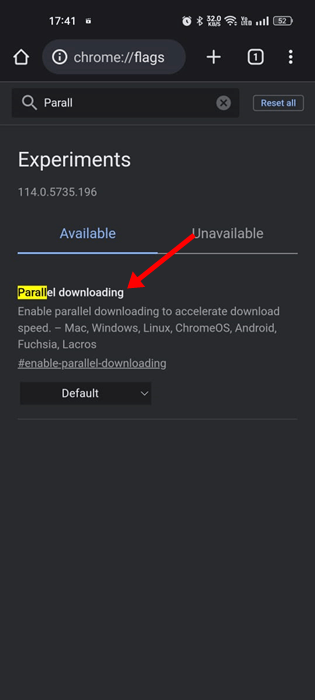
Parallel downloading

4. Tap on the Parallel downloading drop-down and select Enabled.

Enabled

5. After making the changes, tap the Relaunch button at the bottom.

Relaunch

5. Enable Background Data for Chrome

If the Background data is disabled for Chrome for Android, the download will fail once you minimize the web browser. Enabling background data won’t speed up downloads but will reduce the chances of download failures. Here’s what you need to do.

1. Long press the Chrome app icon on your home screen.

2. On the menu that appears, select App info.
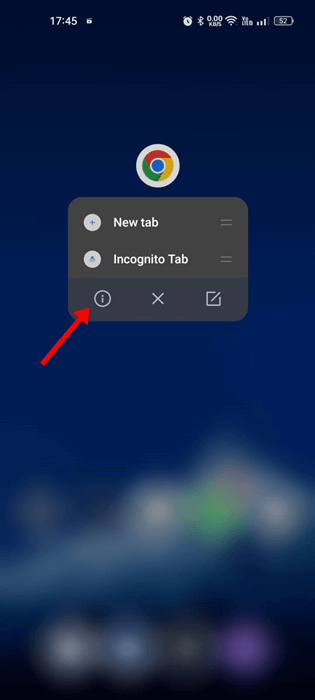
App info

3. On the App info screen, tap on the Data Usage.
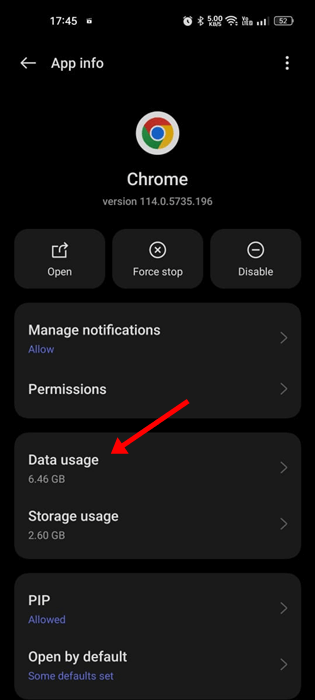
Data Usage

4. On the Data Usage screen, enable the toggle next to the Background Data.

Background Data

6. Turn off the VPN/Proxy Apps

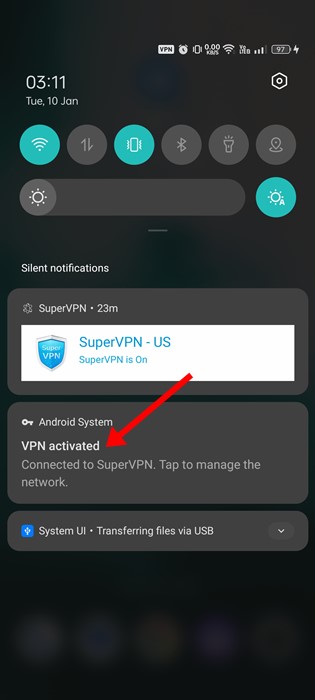
You are using a VPN/Proxy

VPN and Proxy apps can unblock sites for you but can hamper the download speed. VPNs or Proxy apps are never recommended for downloads, as the downloads may fail in case of a connection leak.

So, if you are using VPN or Proxy apps, you can disable them temporarily and resume your downloads. If you still experience slow download speed, you can continue using the VPN/Proxy apps.

If your work involves using a VPN, at least try to use premium VPNs that offer better download speed & minimal connection leak issues.

7. Change the DNS server to speed up downloads

By default, your phone uses the DNS server your Internet Service Provider assigned. The ones assigned by ISPs are often problematic and known for creating slow download issues. The best you can do is to set up a different public DNS server on your Android to speed up Chrome downloads on Android.

1. Open the Google Chrome browser and tap the three dots at the top right.

three dots

2. On the menu that appears, select Settings.
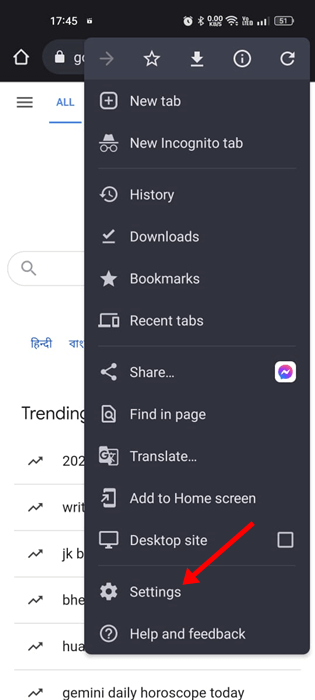
Settings

3. On the Settings, tap on the Privacy and security.

Privacy and security

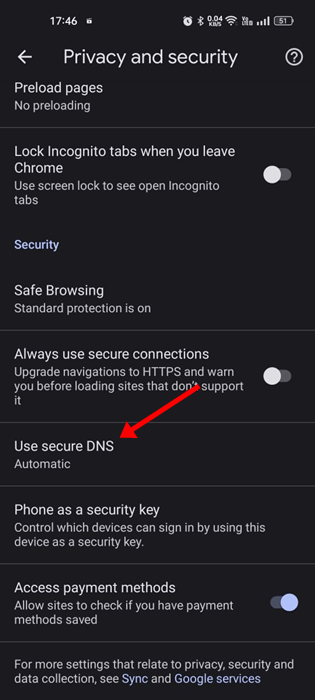
4. Now tap on the Use secure DNS.

Use secure DNS

5. On the Use secure DNS screen, select Choose another provider.

6. Select any public DNS server (Google DNS) is recommended.
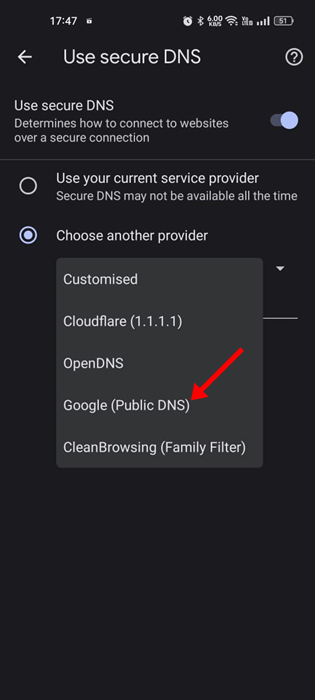
(Google DNS)

8. Clear Chrome Cache & Cookies

Like every web browser, Google Chrome for Android also accumulates cache data to enhance the browsing experience. If this cache data becomes outdated or corrupted, Chrome may download your files slowly.

You will even face problems related to download stopping on Chrome for Android. You need to clear the Chrome Cache & Cookies to resolve such issues. Here’s what you need to do.

1. Open the Chrome browser on your Android and tap on the three dots.

three dots

2. From the list of options that appears, tap on Settings.
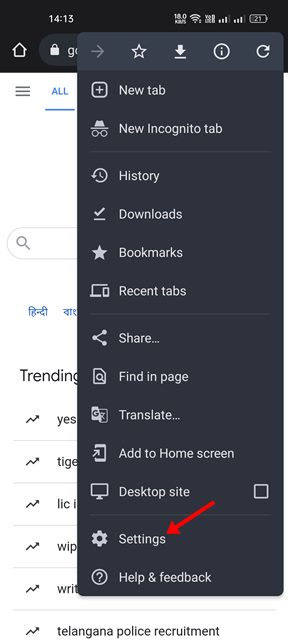
Settings

3. On the Settings, tap on the Privacy and Security.
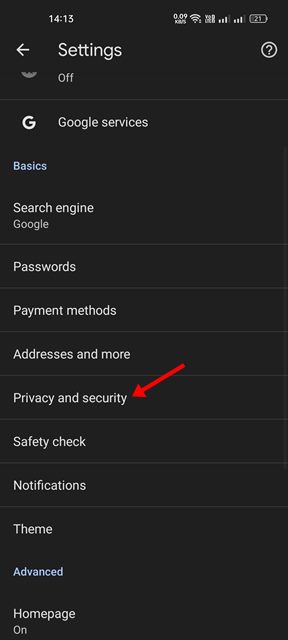
Privacy and security

4. On the Privacy and Security page, tap on Clear browsing data.
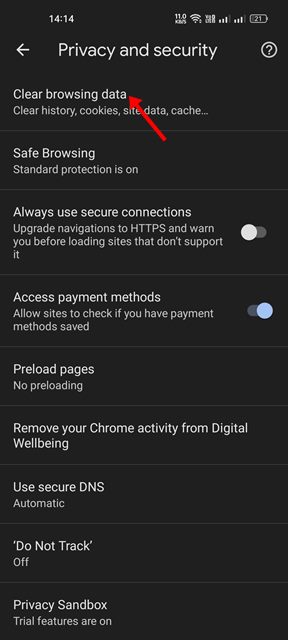
Clear browsing data

5. Check the options – Browsing History and Cookies and Site Data.
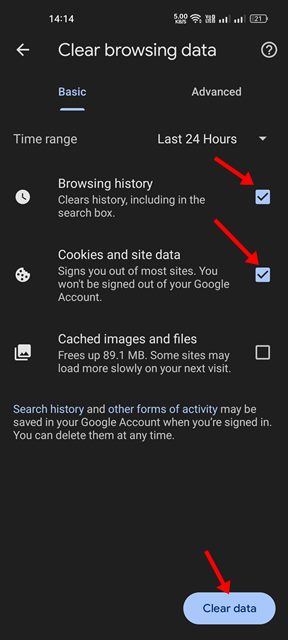
clear data

6. Now tap on the Clear Data button at the bottom right.

9. Update Google Chrome
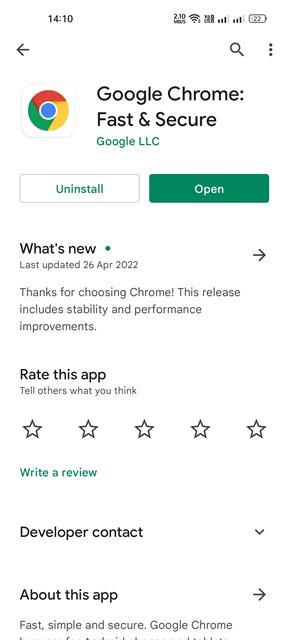
Update the Chrome Browser

Keeping apps up-to-date is a good idea as it brings new features, bug fixes, security patches, etc. Chrome updates often bring more stability & features to improve the user experience.

Your browser version may have a bug or glitch that conflicts with the downloads, leading to slow download speeds.

So, you need to head to the Google Play Store and install all available updates. You must tap the Update button on the Google Play Store’s Google Chrome app listing page. This will update the browser.

10. Reinstall the Chrome browser
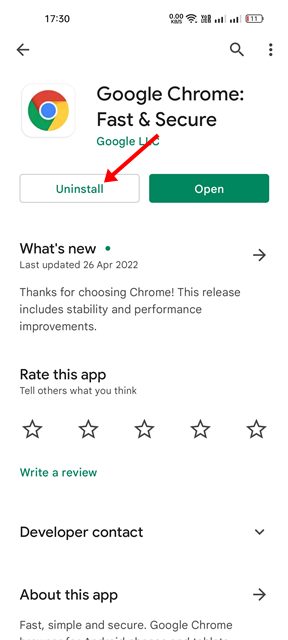
Uninstall

If nothing worked in your favor and the slow download speed issue is still prominent, you must reinstall the web browser.

Reinstalling will delete the history, data, and cache files. To reinstall the Chrome browser, open the Google Play Store and search for Google Chrome.

Next, open the Google Chrome app listing and select Uninstall. Once installed, tap on the Install button again.

These are some of the best and most effective methods for increasing Google Chrome download speed on Android. In the comments below, let us know which method worked for you to speed up Chrome downloads.

Download Google Chrome Offline Installer (32/64-Bit)

5:07 AM 0

 We all know how popular Google Chrome is and how it dominates the web browser section. The web browser is free to download & use and can be downloaded from its official website.

When you download Google Chrome from the official website, you get an online installer file of less than 1MB. The installer connects to the internet and downloads the files on your computer.

If you want to install Google Chrome on a PC with no internet, you need to download a Google Chrome offline installer. Google Chrome Offline Installer has all files needed for installation and can continue its process without the Internet.

Download Google Chrome Offline Installer (32 & 64-bit)

You can also use Chrome offline installer to install the web browser on any other computer. The offline installer can be reused many times on multiple computers. So, in this article, we will share links for the full standalone Chrome offline installer. Let’s get started.

1) Download Google Chrome Offline Installer

If you want to download the offline installer of Google Chrome to use it on other devices, you need to download the browser from these links. Below are the download links for Google Chrome offline installers.

  • Download: Google Chrome Offline installer
  • Download: Google Chrome Offline Installer for Linux

After downloading the Google Chrome offline installer, move the file to the device you want to install the web browser. Since it’s an offline installer, it doesn’t need an active internet connection.

2) Download Google Chrome for Single User Account

If you want to download and install Google Chrome for a Single user account, use the links we have shared.

  • Download Google Chrome offline Installer (32-bit)
  • Google Chrome offline Installer Download (64-bit)

3) Download Google Chrome for All User Account

If you want to download & install Google Chrome for all user accounts, use the shared download links.

  • Download Chrome Offline Installer for all user accounts (32bit)
  • Chrome offline Installer Download (All Users) (64-bit)

4) Download Google Chrome Beta Version

If you want to test the beta features of Google Chrome, you need to use the Chrome beta version. However, Chrome beta is unstable, and you might experience a few browser problems. Below are the download links for the Google Chrome Beta Version.

  • Google Chrome Beta for macOS
  • Google Chrome Beta for Linux
  • Google Chrome Beta for Android
  • Google Chrome Beta for iOS
  • Google Chrome Beta for Windows 32-bit
  • Google Chrome Beta for Windows 64-bit

5) Download Google Chrome Dev

If you are willing to test what’s coming next to the Google Chrome web browser, then Chrome Dev might be your best pick. However, like Chrome Beta, Google Chrome Dev has many bugs. It might even increase the RAM consumption rate of your PC. Anyways, here are the download links for Google Chrome Dev

  • Google Chrome Dev for macOS
  • Google Chrome Dev for Linux
  • Google Chrome Dev for Android
  • Google Chrome Dev for Windows 64-bit
  • Google Chrome Dev for Windows 32-bit

6) Download Google Chrome Canary Build

Well, Google first released all its experimental features to Chrome Canary. Then, after a bit of testing and tweaking, it’s released to Chrome Dev.

So, with Chrome Canary, you can experience the latest Chrome features about to make their way to the Chrome dev.

However, Chrome Canary is highly unstable, and you might experience many problems with this browser. However, the good thing is that the Canary build can be installed alongside a stable version.

  • Google Chrome Canary for macOS
  • Google Chrome Canary for Android
  • Google Chrome Canary for Windows 64-bit
  • Google Chrome Canary for Windows 32-bit

That’s it! You are done. This is how you can install Google Chrome updates automatically.

7) How to Check & Update Chrome browser

If you want to update your Google Chrome web browser, follow some simple steps below. Although Google Chrome automatically checks and updates the web browser whenever required, you can force Google Chrome to check for updates immediately. Follow the steps given below to check & update the Chrome browser.

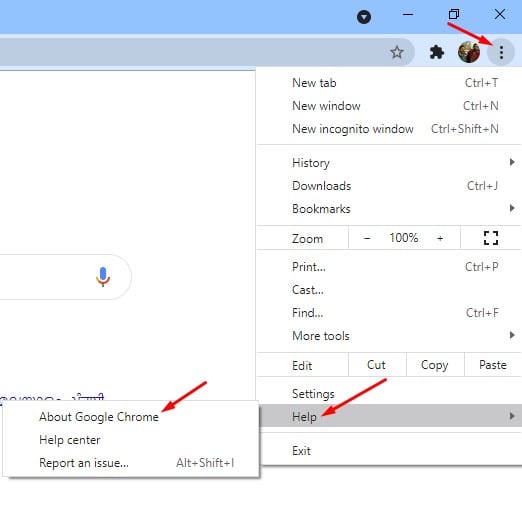
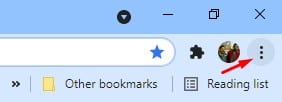
1. First of all, open the Google Chrome web browser. Next, tap on the three dots as shown below.

open the Google Chrome web browser

2. Now, head to Help > About Google Chrome.

Help and About Google Chrome

3. Google Chrome will automatically check for all available updates on the About Chrome page.

8) Download & Install Chrome Browser Automatically

If you cannot visit the official Chrome website for some reason, you can use the Ninite Chrome installer to install the browser on your device. Ninite is software that allows you to download & install multiple programs at once, for those who don’t know.

You can use the Ninite Chrome installer to automatically install Google Chrome on your device. You need to download and run the installation file, and the Ninite Chrome extension will handle everything else automatically.

9) Download Google Chrome via Powershell

If you cannot access any web browser, use Windows 10 PowerShell to install Google Chrome. You need to open the Windows search and type in ‘PowerShell.’ Now, right-click on the ‘Powershell’ and click ‘Run as administrator.

On the Powershell Window, enter the command for the 32bit operating system

iwr -outf chrome-latest.exe https://www.google.com/chrome/browser/?platform=win32

If you wish to download the 64-bit version of Google Chrome, you need to execute this command-

iwr -outf chrome-latest.exe https://www.google.com/chrome/browser/?platform=win64

So, this article is about downloading Google Chrome offline installers. I hope this article helped you! Please share it with your friends also. If you have any doubts, let us know in the comment box below.