Showing posts with label Iphone. Show all posts

Thursday, August 8, 2024

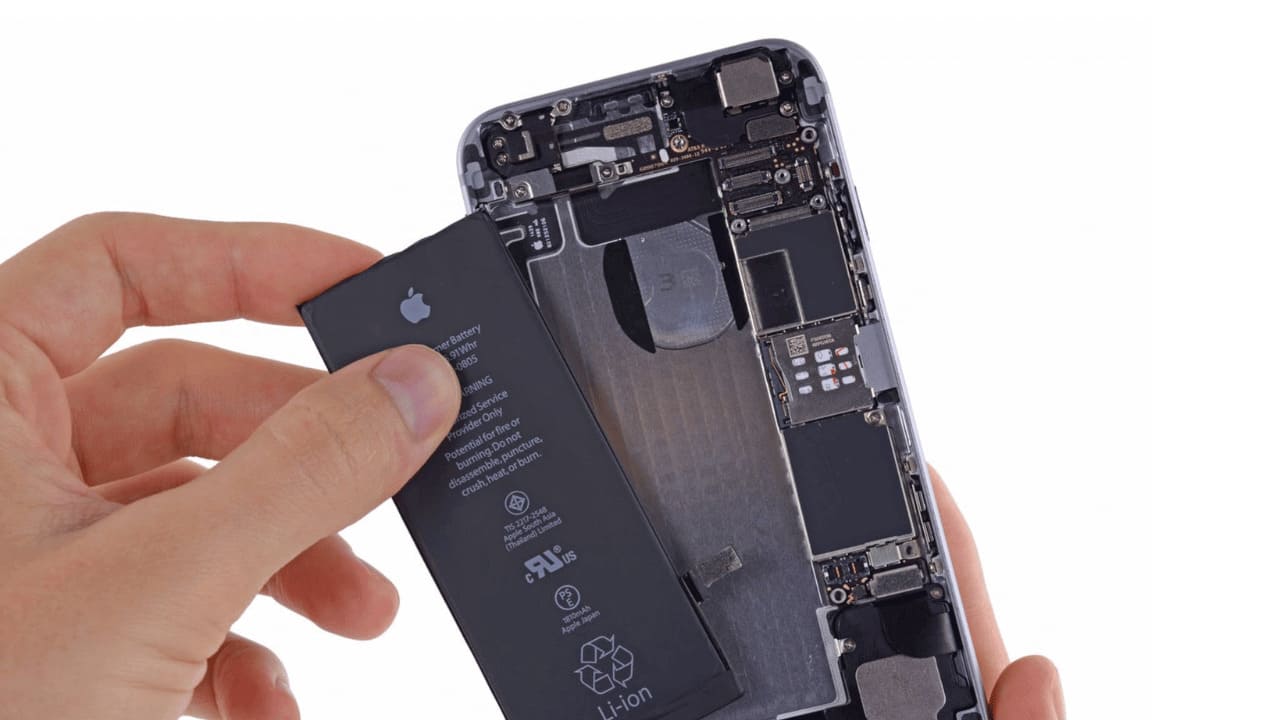
Apple Is Working On Removable Battery For iPhone 16: Report

5:16 AM 0

 Apple is working on a new technology that could simplify the replacement of iPhone batteries, according to a new report from The Information, citing people involved in the iPhone’s manufacturing.

Apple is developing a removable battery for iPhone 16
Apple Is Working On Removable Battery For iPhone 16: Report

This proactive move by the Cupertino giant is a significant step towards a more sustainable future. It comes in response to the upcoming European Union (EU) regulations that require smartphone manufacturers to develop phone batteries that their owners can replace with easily accessible tools by 2025.

For those unaware, the European Council last year adopted a waste-reducing regulation that mandates manufacturers of portable appliances feature batteries that can be easily removable and replaceable by end-users. Electric vehicles (EV), light means of transport (LMT), and industrial batteries should also be easily removable and replaceable by independent professionals. This requirement will be imposed from February 18, 2027.

Currently, ‌the iPhone‌ battery requires removing the adhesive strips that secure it using tweezers, making it challenging. If these strips break during the removal process, heat or a solvent is used to displace the adhesive. After removing the old battery, a specialized machine and tray are required to install a new battery securely into place.

Under the new EU regulations, changing a battery must not require heat or a solvent to disassemble it,  nor shall the user have to resort to special tools.

To comply with the new regulations, Apple must use “electrically induced adhesive debonding,” a method that administers a small jolt of electricity to the battery to dislodge it from the chassis. This new method involves encasing the battery in metal rather than foil as it is currently.

According to The Information, Apple could test out the new battery technology in at least one iPhone 16 model later this year and is likely to bring all iPhone 17 models in 2025. If this move is successful, users would still need to open the iPhone themselves, which would be challenging due to the device’s sealed design. As a result, they would also need to continue relying on Apple stores or other repair shops.

Not just Apple, many other manufacturers use similar adhesive pull tabs, which requires them too to alter their designs to comply with the new EU regulations. This could significantly change the repair industry as we know it.

Wednesday, August 7, 2024

How to Fix Can’t Connect to VPN on iPhone (8 Methods)

8:09 AM 0

iPhones let you connect to a VPN server to unlock blocked websites and services. You can either manually set up a VPN on your iPhone or download a third-party VPN app from the Apple App Store.

While it’s easy to connect to a VPN on an iPhone, sometimes you may experience problems while establishing a VPN connection. You may experience problems due to unstable internet, overcrowded VPN server selection, ISP blocking the connection, etc. 

How to Fix Can’t Connect to VPN on iPhone

Regardless of the type of problems you’re facing, you can follow these methods to fix can’t connect to a VPN on iPhone issue. Here’s how you can fix can’t connect to VPN problem on your iPhone.

1. Check Your Internet

Check Your Internet

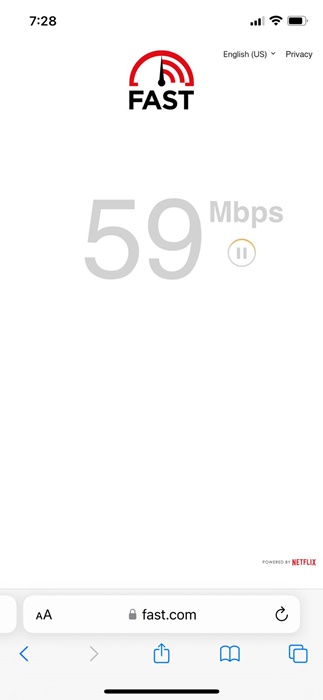
If your internet is not working or is unstable, the VPN connection will experience problems while establishing.

You need a working and stable internet connection to use any VPN or Proxy app. So, before you follow the next methods, check whether your internet is working.

2. Reopen the VPN app on iPhone

The first best thing you can do to fix can’t connect to VPN on your iPhone is to force quit your VPN app, then reopen it.
Reopning the VPN app will possibly remove all bugs & glitches that may be preventing your iPhone from connecting to a VPN server.

3. Restart your iPhone

Restart

If reopening the VPN app doesn’t work, you can try restarting your iPhone. This will remove system-level bugs and glitches that may be conflicting with your VPN Profile.

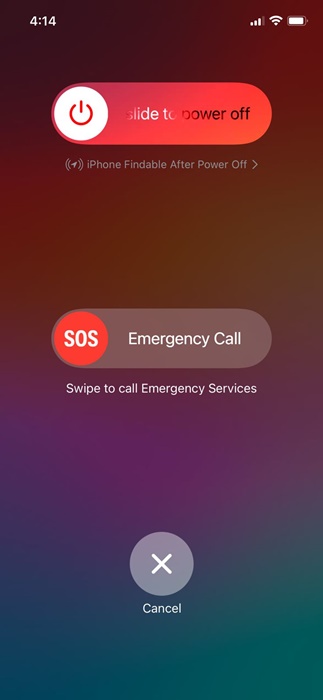
So, long press the Side button of your iPhone and then pick the Slide to Restart option. This will possibly fix the VPN connection problem you’re facing.

4. Connect to a Different Server

Connect to a Different Server

Premium VPN apps for iPhones usually have hundreds of servers worldwide. The server you’re trying to connect with is likely overcrowded, and hence, the connection is failing.

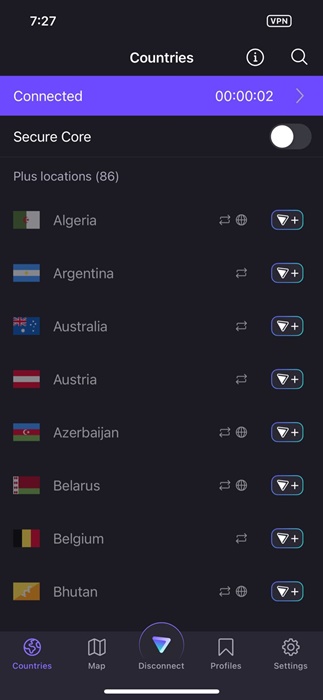
So, you can try connecting to one of many servers that the VPN app offers. Open the VPN app on your iPhone and switch to a different server, which is less crowded.

5. Make Sure your ISP isn’t Blocking the VPN connection

If your iPhone still can’t connect to a VPN, you must confirm whether your ISP is the culprit. Although rare, ISPs can impose restrictions and prevent your iPhone from connecting to a VPN server.
If you already know that your ISP doesn’t allow VPN, you can also try a different VPN app and check whether it’s blocked.

6. Delete the VPN Profile

Whenever you connect to a VPN server via the app, the app asks permission to create a new VPN profile on your iPhone. After creating a profile, the app monitors or filters the network activity.

If the VPN profile isn’t working, you won’t be able to connect to a VPN server. Hence, you can try deleting the VPN profile to check if it works.

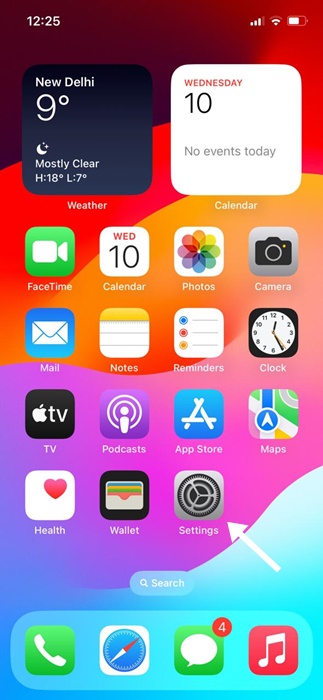
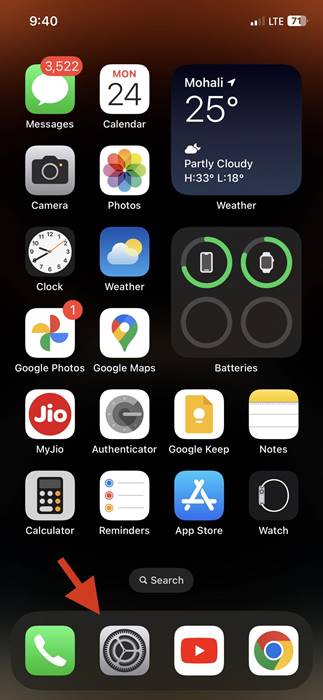
1. To get started, launch the Settings app on your iPhone.

Settings

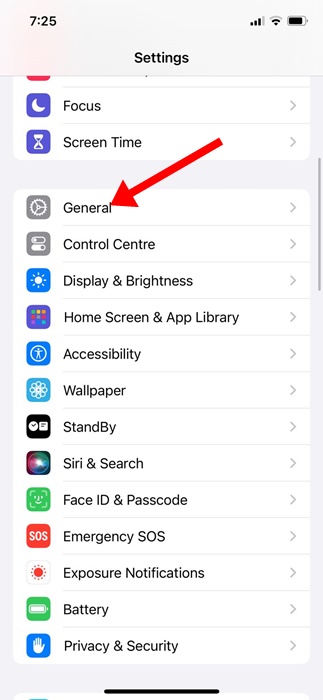
2. When the Settings app opens, tap on General.

General

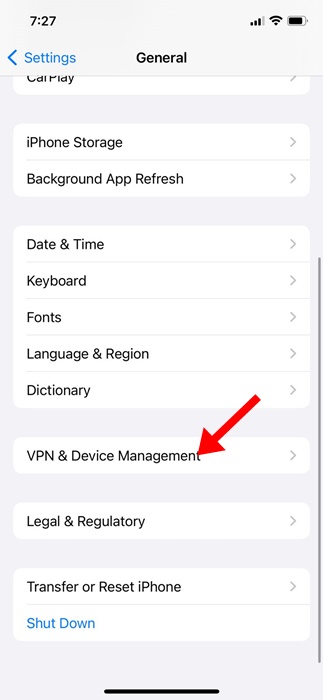
3. On the General screen, tap on VPN & Device Management.

VPN & Device Management

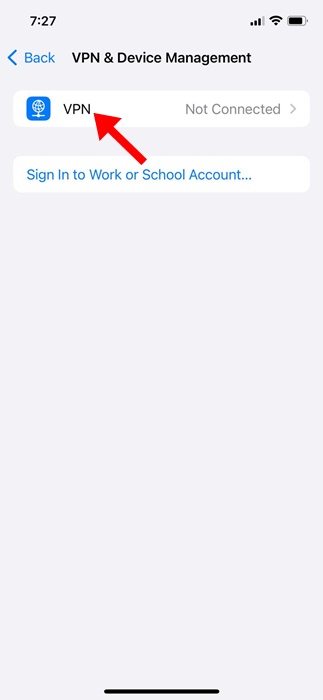
4. Next, tap on VPN.

VPN

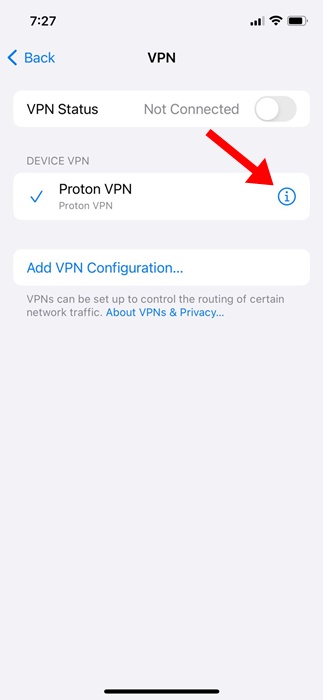
5. Next, select the VPN profile and tap on the (i) button next to it.

(i)

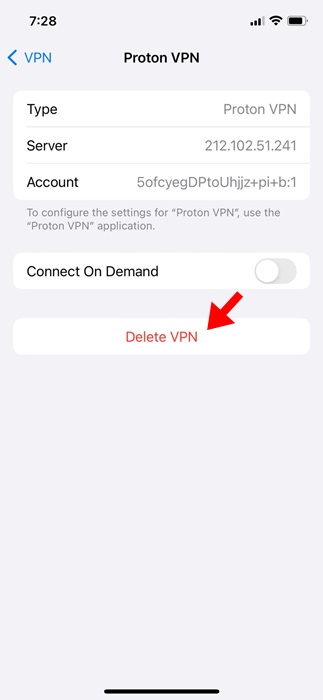
6. On the next screen, tap on Delete VPN.

Delete VPN

7. On the Confirmation prompt, tap on Delete again.

That’s it! After deleting the VPN profile, open the VPN app again and grant permission to create a profile.

7. Reset the iPhone Network Settings

Well, if nothing worked to fix can’t connect to VPN on iPhone, the ultimate solution is to reset the network settings.

Resetting iPhone’s network setting will delete the network cache, old data records, and will possibly resolves all network related problems.

1. Open the Settings app on your iPhone and select General.

General

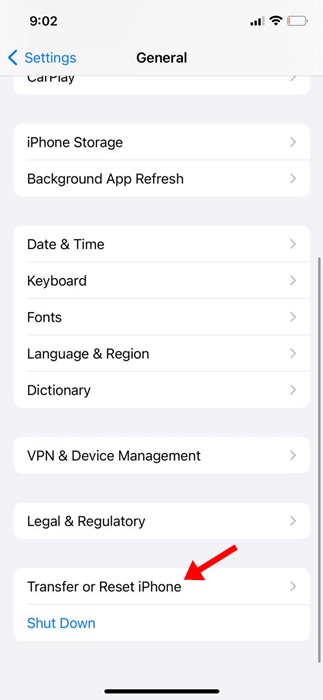
2. On the General screen, tap on Transfer or Reset iPhone.

Transfer or Reset iPhone

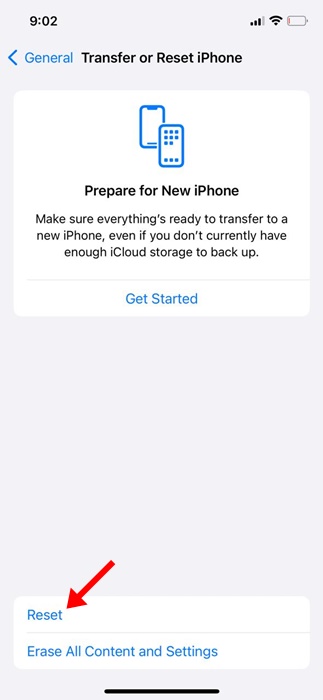
3. On the next screen, tap on Reset.

Reset

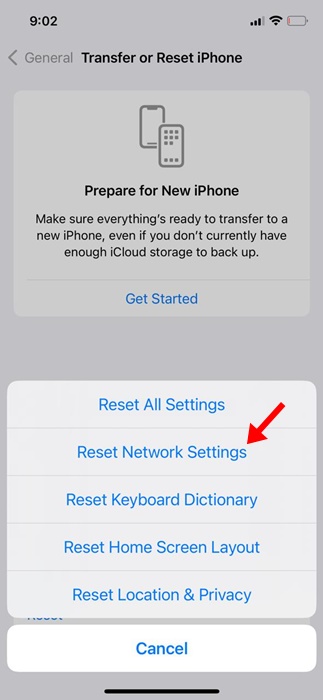
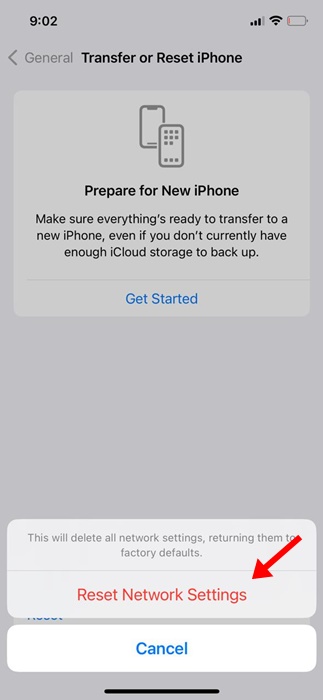
4. On the prompt that appears, select Reset Network Settings.

Reset Network Settings

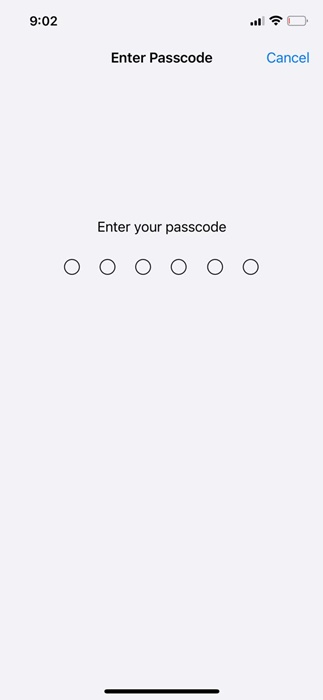
5. Now, you will be asked to enter your iPhone’s passcode. Enter the passcode

enter your iPhone's passcode

6. On the confirmation prompt, tap on Reset Network Settings again.

Reset Network Settings

That’s it! This is how easy it is to reset network settings on your iPhone.

8. Try a different VPN App

Try a different VPN App

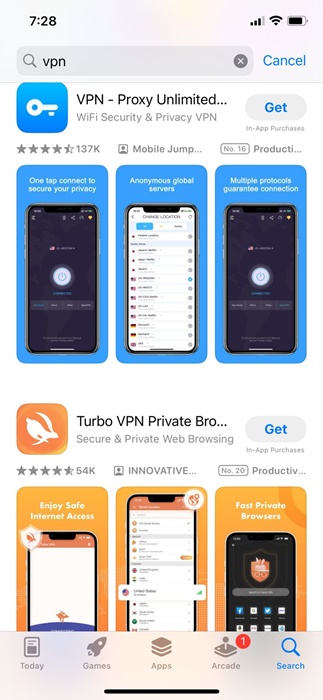
As we all know, there’s no shortage of VPN apps on the Apple App Store. So, if you still can’t connect to a VPN on your iPhone, you can consider using a different VPN app for iPhone.

You can find hundreds of VPN apps on the Apple App Store; just install a different one with a better rating and positive reviews.

The VPN app will create a profile and will connect your iPhone to the VPN server.

These simple methods can fix the Can’t Connect to a VPN on iPhone problem. Let us know if you need more help on this topic in the comments. Also, if you find this guide helpful, don’t forget to share it with your friends.

How to Clear App Cache on iPhone Without Deleting Apps (5 Methods)

8:07 AM 0

 Managing the storage space on an iPhone is very important, especially if you want to maintain performance.

Like all phones, iPhones get cluttered over time because storage is under a lot of stress. We install endless sets of apps from the App Store and forget to delete the unused ones.

These unused apps don’t run in the background, but they do build the app cache file. Even if you ignore the unused apps, the apps you actively use can take up a significant amount of storage space in the form of a cache.

What is iPhone App Cache?

App Cache files are temporary data & resources stored by the apps locally on your iPhone to load content faster.

The app cache files builds up as you use the app; since it downloads the frequently used data from the internet, such as images, videos, website logins, etc and stores them to the internal storage for quicker access and to reduce the app load time.

iOS hides these files to avoid interference from users. The Cache files are very important to apps because they help them run more efficiently & load content faster.

When to Clear App Cache on iPhone?

You should avoid clearing the App Cache on your iPhone if you have no reason to do so. People generally clear the app cache when the device shows signs of lag or has less storage space.

You can clear the App cache if your iPhone warns you of low storage space or if it has become sluggish.

Clearing the app cache could be the best option if any specific app is not functioning as it should. There’s no definite answer for when to clear the app cache; you can clear it whenever you want to improve your iPhone’s overall performance.

How to Clear App Cache on iPhone Without Deleting Apps

Clearing the app cache on iPhone is not as easy as on Android; you may have to delete the app and install it again. However, a few workarounds will allow you to clear the app cache on your iPhone without deleting the app.

Hence, below, we have shared all the best ways to clear the app cache on iPhone without deleting the apps. Let’s get started.

1. Restart your iPhone

Restart won’t clear your iPhone app cache, but it will definitely improve the performance of your device.

The purpose of restarting the iPhone is to refresh all background processes and apps. Restarting your iPhone will also rule out bugs preventing you from following the next methods.

Restart your iPhone

  • To restart your iPhone, follow the steps we have shared below.
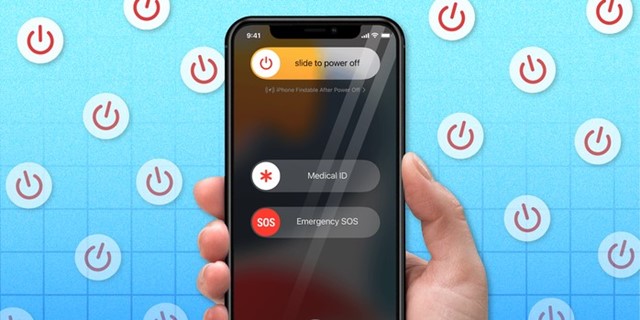
  • First, press and hold the Power + Volume Up/Down buttons for a few seconds.
  • Swipe the ‘Slide to Power off’ option on the Power Menu.

Once your iPhone is turned off, you need to wait around 1 minute and press & hold the Power button.

That’s it! This will start your iPhone again. Make sure to restart your iPhone before following the next methods.

2. Offload iPhone Apps from Settings

iPhone has an ‘Offload App‘ feature that helps you free up storage space. When you offload an app on an iPhone, the app is deleted, but its data is still kept. So, when you offload an app, the app is removed, but the data related to it remains intact.

This is a convenient feature, especially if you plan to free up storage space but want to keep your app data. Reinstalling the offloaded app will immediately restore your previous data. Here’s how to offload apps on iPhone.

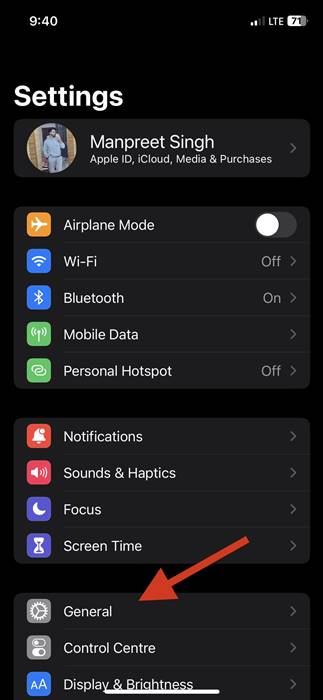
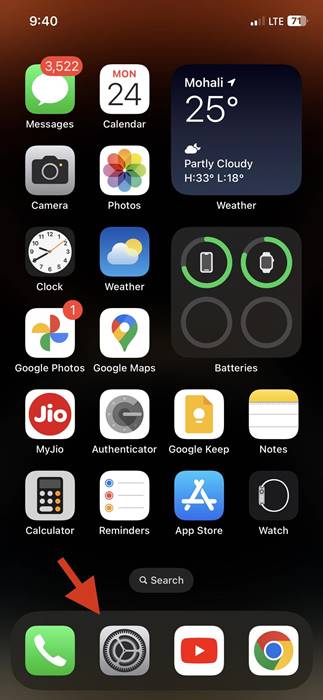
1. First, open the Settings app on your iPhone.

Settings

2. When the Settings app opens, tap on the General option.

General

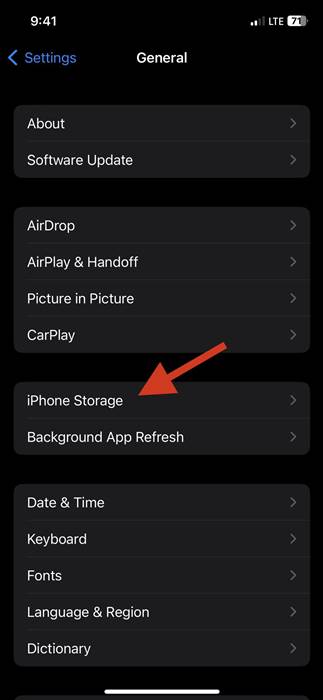
3. On the General, tap on iPhone Storage.

iPhone Storage

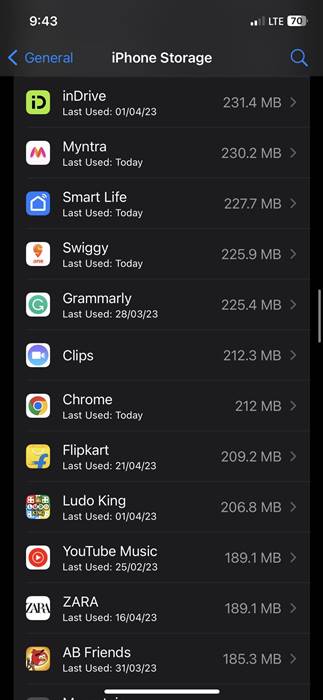
4. Now, pick the app which you want to offload.

pick the app

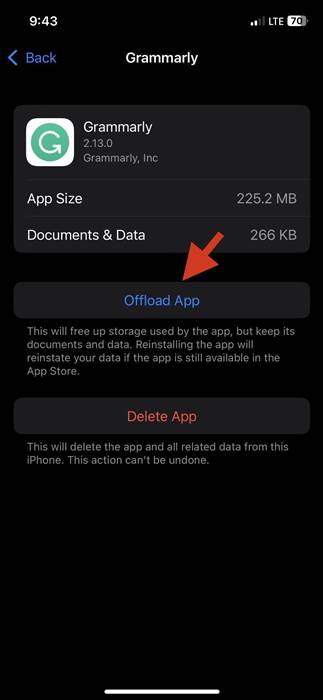
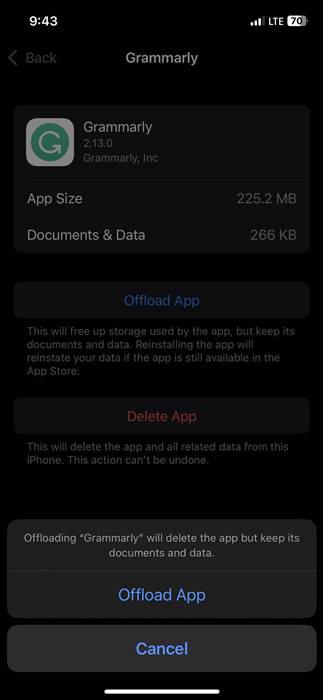
5. On the next screen, tap on the Offload app option.

Offload app

6. On the confirmation prompt, tap the Offload app option again.

Offload app

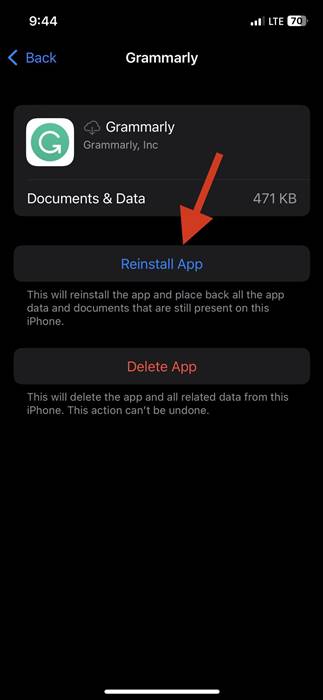
7. If you ever wish to reinstall the offloaded app, reach Step 4 and tap the Reinstall App option.

Reinstall App

That’s it! The offload option will free up the app’s storage space but keep its documents and data.

3. Clear Browser Cache on iPhone

The Safari web browser on the iPhone also saves many cache files on your iPhone storage. Hence, you can also clear the browser cache to free up storage space.

Clear Cache of Google Chrome on iPhone

Google Chrome is very famous amongst iPhone users, and if you use it to browse the web, you can clear its cache to free up some space.

1. To start, open the Google Chrome browser on your iPhone.

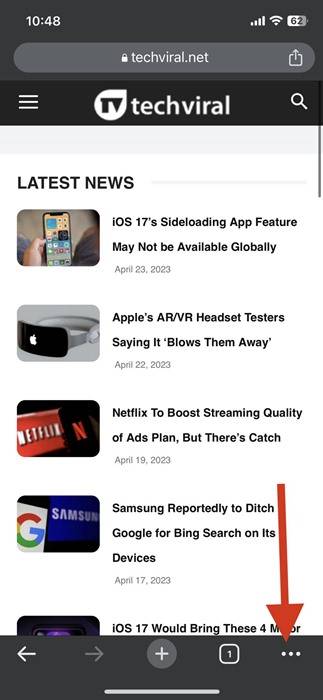
2. Tap on the three dots at the bottom-right corner.

three dots

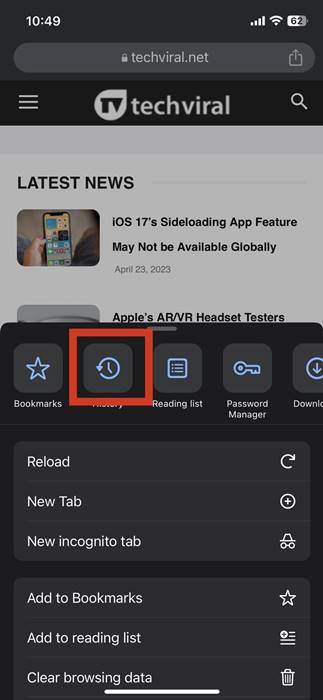
3. From the list of options that appears, select History.

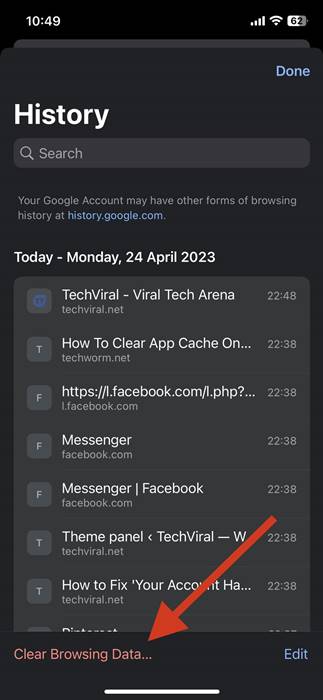
History

4. On the History screen, tap the Clear browsing data button.

Clear browsing data

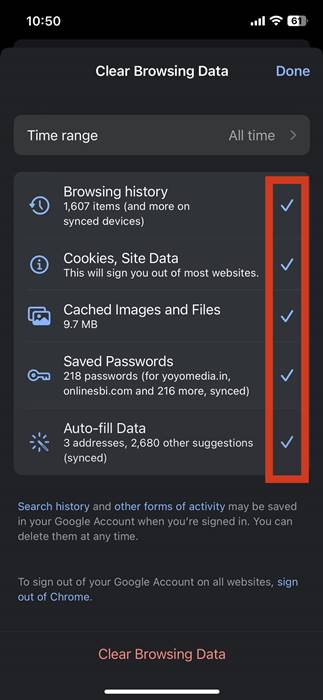
5. Select All Time on the Time Range and make sure all options are selected. Once done, tap on the Clear browsing data button.

All Time

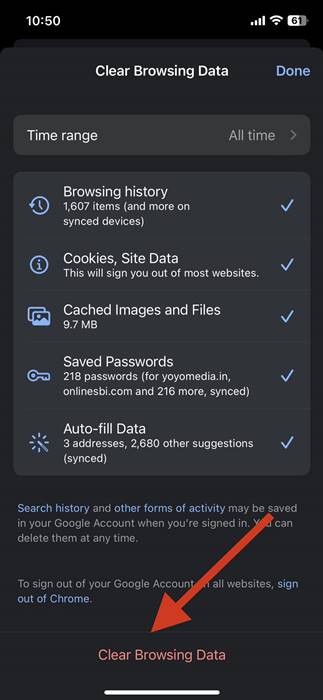
6. On the confirmation prompt, tap on Clear Browsing Data again.

Clear Chrome cache

That’s it! This will clear the cache file of your Google Chrome browser on your iPhone.

Clear Cache of Safari Browser on iPhone

The steps to clear the Safari browser cache is a bit different. Here, you need to clear the app cache from the Settings app. Here’s what you need to do.

1. First, open the Settings app on your iPhone.

Settings

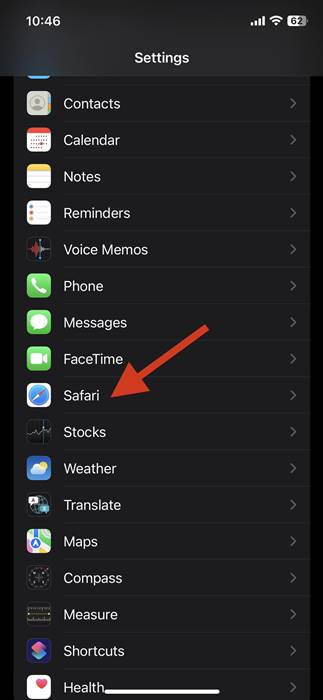
2. On Settings, scroll down a bit and tap on Safari.

Safari

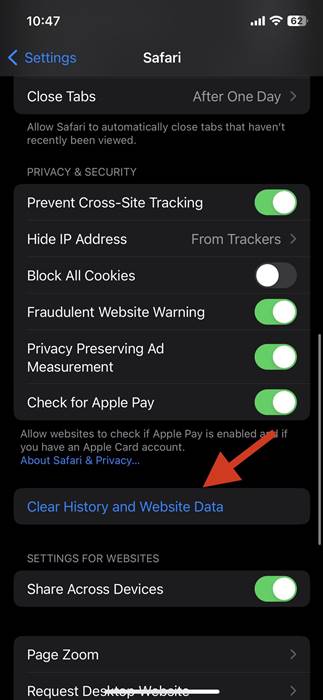
3. On the Safari screen, scroll down and tap Clear History and Website Data.

Clear History and Website Data

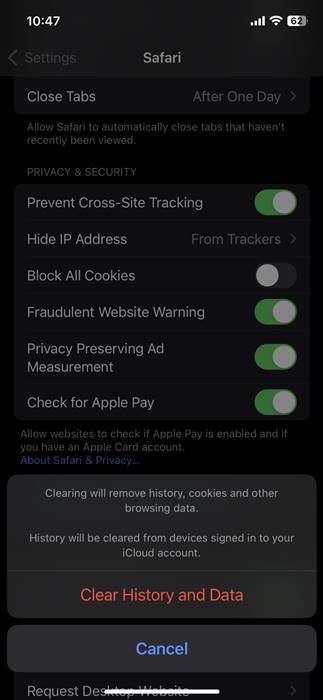
4. Tap the Clear History and Data option again on the confirmation prompt.

Clear History and Data

That’s it! This will clear the Safari cache on the iPhone and free up some storage space.

4. Clear Cache from individual apps on iPhone

iPhone doesn’t allow you to clear the app cache individually, but some apps, like Safari, Spotify, etc., provide an in-app option to clear the cache it had stored.

Hence, if you feel like your iPhone is running low on storage, you can utilize that in-app cache cleaning feature to clear the cache files.

But, the problem is that only a handful of apps have the feature that lets you clear cache from the in-app settings; hence this may not be a very effective option.

Here’s how to clear cache from specific apps on iPhone.

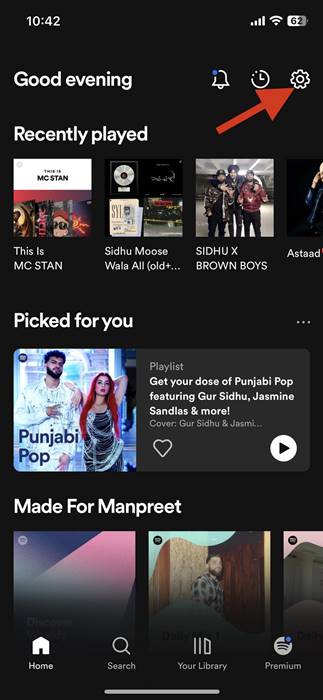
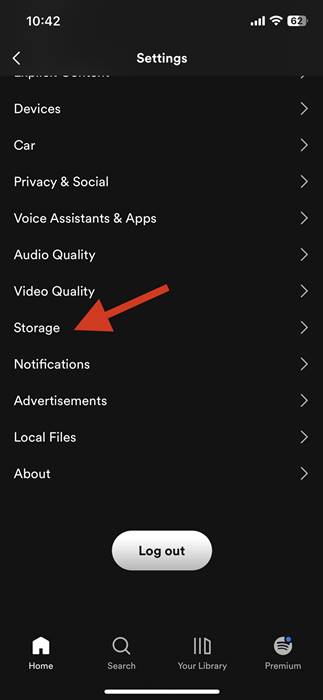
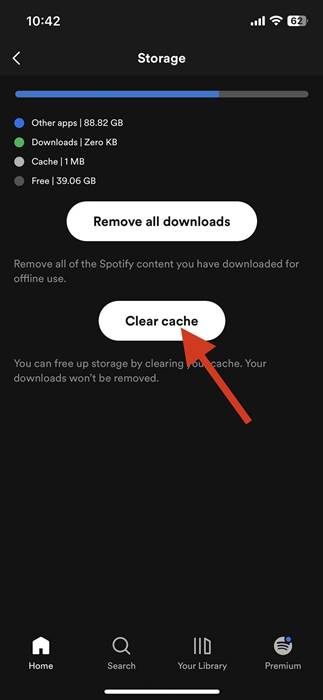
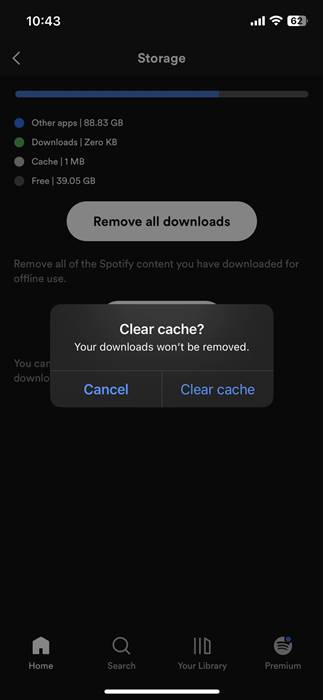
Note: I have used the Spotify app to demonstrate the steps. You will usually find the option to clear the cache in the app’s Storage Settings.

1. First of all, open the Spotify app. Next, tap the Settings icon that sits in the top-right corner.

Spotify

2. On the Settings screen, tap on the Storage.

Storage

3. Next, under Storage, tap the Clear Cache option.

Clear Cache

4. On the Confirmation prompt, tap the Clear Cache option again.

Clear Cache

That’s it! This will clear the Spotify cache on your iPhone. Other apps like Snapchat and Safari also offer an option to clear the cache from the in-app settings.

5. Use Cache Cleaner Apps for iPhone

There are hundreds of third-party apps to clear iPhone app cache on the Apple App Store. Some apps clear the app cache without deleting the app on the iPhone, but they usually require a purchase.

Apart from cache cleaners, some storage management apps for iPhones also have a feature to clear app cache. You need to explore the iPhone app catalog on the Apple app store and install the apps that clear the cache file.

However, use trusted iPhone cache cleaners and avoid downloading apps from unknown sources.

Also read: 20 Best Hidden iPhone Secret Codes

So, these are some easy ways to clear the app cache on an iPhone without deleting the app. You can follow these methods to clear the app cache and free up some storage space. If you still need help clearing your iPhone app cache, please ask in the comments below.